
PKOK Login: How to Sign In, Recover Access and Stay Secure
PKOK Login works with your username or registered mobile number and your password, on the PKOK Android APK, the iOS app or any browser. It is a three-second job on a good day, a one-minute SMS reset on a bad one, and chat is reachable from the sign-in screen either way.
PKOK Login Key Facts
In short: one login for every device, one session at a time.
- Sign in with: username or mobile number, plus password.
- Devices: Android APK, iOS app, mobile and desktop browsers.
- Biometrics: fingerprint on Android, Face ID or Touch ID on iPhone.
- Sessions: one active at a time; a new login ends the old one.
- Lockout: five wrong passwords lock the account for 10 minutes.
- Recovery: 6-digit SMS code to the registered number.

Signing In With PKOK Login
In short: five steps, then you are in the lobby.
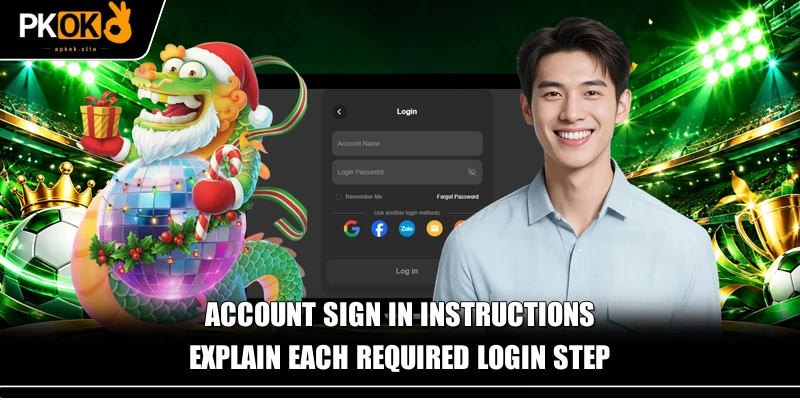
- Launch PKOK from the home-screen icon or your own saved link.
- Tap Sign In.
- Enter your username or your 01 mobile number.
- Enter your password and confirm.
- Your balance, inbox and Reward Center appear at the top of the screen.
On the App
After the first sign-in, switch on biometric login under Me, then Settings. The app keeps the current site address, so it connects even when a domain is blocked on your network, and it reconnects on its own after a dropped signal.
In a Browser
Chrome, Safari, Opera and Edge all work. Save the address the first time and come back through that saved link. On a shared computer, leave the “Stay signed in” box empty and sign out at the end.
On a Desktop
The login box sits at the top right. The wider screen shows more exchange markets and full baccarat road maps, which suits long sessions at home.
When PKOK Login Does Not Work
In short: most problems have a one-minute fix.
Wrong Password
Check Caps Lock and the keyboard language first. Then tap Forgot Password, enter the registered number, type the SMS code and choose a new password of 6 to 15 characters. All other devices sign out at once.
Account Locked
Five wrong tries lock the account for 10 minutes to stop guessing. Wait, or reset the password to unlock it straight away.
No SMS Code
Wait 60 seconds, check signal and the spam SMS folder, and tap Resend. Codes expire after three minutes.
Page Will Not Load
Flip from Wi-Fi to data or back, empty the browser’s stored files, or simply use the app, which tracks the live address. Live chat can also share the working link.
Old App Version
If the app asks for an update, install the newest APK from the download page over the old one. Your account and balance stay the same.
Lost Phone or New Number
Chat support needs your username, real name, top-up wallet and the size of your most recent deposit. After support confirms the account, the new number is linked and you can reset your password.

See more: PKOK Deposit
PKOK Login Limits at a Glance
In short: the numbers behind locks, codes and sessions.
| Item | Limit |
| Wrong passwords before lock | 5 |
| Lock length | 10 minutes |
| SMS codes per hour | 5 |
| Code validity | 3 minutes |
| Active sessions | 1 |
| Browser session without a visit | 30 days |
Changing Your Password
Under Me, then Security, choose Change Password, enter the current one and the new one twice, then confirm with an SMS code. Every other device is signed out immediately. After any leak, change the withdrawal PIN too.
After the App Updates
An app update keeps you signed in. A browser session ends when cookies are cleared or after 30 days away, so a sudden password prompt in the browser is normal, not a fault.
What You See After Signing In
Right after PKOK Login, the top strip shows money available, a red number on the inbox and your bonus progress. If the balance looks short, tap Collect Balance to bring back money left in a game.
PKOK Login on Shared and New Devices
In short: be careful on phones and computers that are not yours.
Borrowed Phone
Use the browser rather than installing the app, leave “Stay signed in” empty and sign out at the end. Then clear the browser’s history and saved passwords if you used it to sign in.
New Phone
Install the app from the official site, sign in, and enter the SMS code sent to your registered number. The old phone is signed out automatically. If you are selling the old phone, uninstall PKOK and reset the phone first.
Travelling
Your password works anywhere, but codes for new devices go to your registered SIM. Sign in on your own phone before you travel so no new-device code is needed while away.
Keeping PKOK Login Safe
In short: unique password, separate PIN, check your sessions.
- Use a password you do not use anywhere else, and change it every few months.
- Keep your withdrawal PIN different from your login password.
- Check Login History under Me, then Security, and end any session you do not recognise.
- Ignore login links that arrive in chats or social posts; cloned betting pages harvest passwords.
- PKOK staff never ask for your password, OTP or wallet PIN.
PKOK Login FAQ
Can I use PKOK Login with my phone number?
Yes. Your username or registered number both work with your password.
Why was I asked for a code?
A code is sent when you sign in from a device the account has not used before.
Can I stay signed in on two phones?
No. One session at a time; the newest login ends the previous one.
Is support available without signing in?
Yes. Live chat on the login screen opens without an account session, 24 hours a day.
Sign In to PKOK Login Now
Pick the app or a bookmark, use your number or username, and keep your codes to yourself. After PKOK Login, the whole lobby is open at PKOK.